


There are a lot of great ways to use the Find a Grave® app when you visit a cemetery. One approach we like is to begin by clicking “Cemetery Search” from the main page of the app.


With location services enabled, when you click Cemetery Search while you are at the cemetery, you should see the cemetery you are in listed at the bottom of the screen. Tap on that cemetery name to go to the cemetery page. On that page, you can find the information and memorials on Find a Grave for that cemetery. You can also see if there are any open photo requests.

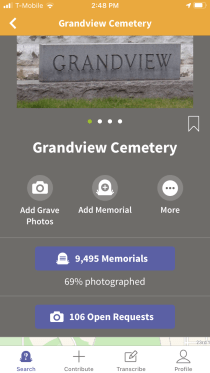
If you are ready to add some images or information to the cemetery, just walk to the grave you want to start with and click on the number of memorials in the cemetery to search within that cemetery. Now, just type in the last name on the gravestone you are next to to see if a memorial has already been added for that person.


If you don’t find a memorial, you can add one by clicking the plus (+) button in the top right of the screen. From there, you can either “Add Memorial” by typing in the information or “Add Grave Photos” by taking a picture. Pictures will be added to your transcription queue and you can transcribe them at home or somewhere else later.
If a memorial already exists for that person, you can see from the icons to the left of the search result if the memorial needs a photo or GPS coordinates. If it needs either of those you can click on the person’s name to open their memorial and add those items or in iOS you can swipe left on the listing to see buttons for adding GPS coordinates or a photo.
Once everything is added for that grave, you can move on to the next grave, enter the last name from that gravestone into the search and see if there is something else you can add.